

So konvertieren Sie PNG in JPG für kleinere Dateien
So konvertieren Sie PNG in JPG für kleinere Dateien
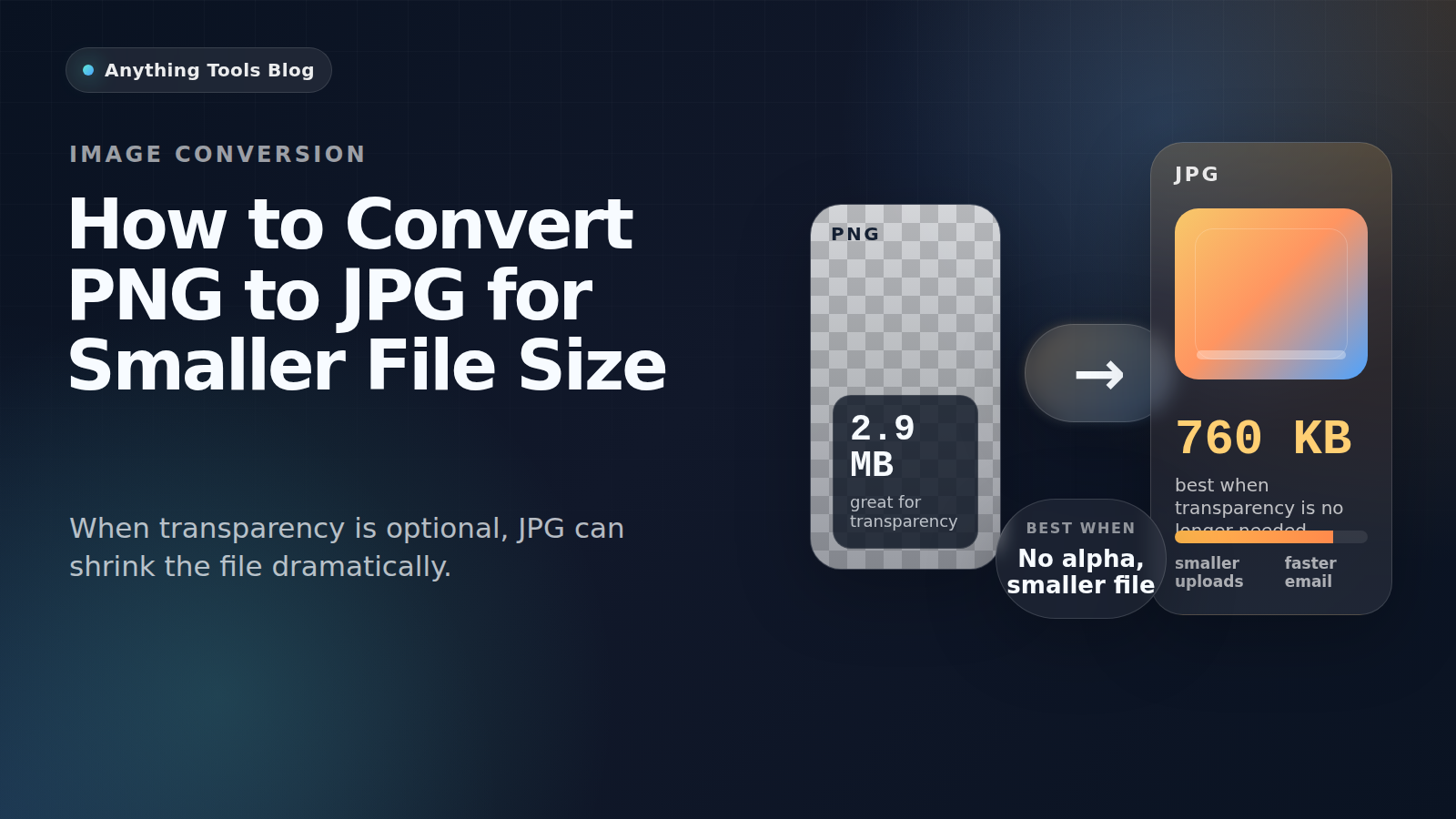
PNG ist ideal für Screenshots, Logos und transparente Grafiken. Wenn ein Bild aber eher wie ein Foto ist und keine Transparenz mehr braucht, ist PNG oft unnötig groß.
Good candidates for conversion
PNG to JPG works best for photographs, flattened marketing visuals, blog headers, and product images that no longer need transparency.
When not to use JPG
Keep PNG for logos, icons, UI screenshots, tiny text, and any image that still requires transparency. JPG compression can blur edges and create artifacts.
Practical workflow
- Check whether transparency is still needed.
- Resize first with Image Resizer.
- Convert with PNG to JPG.
- Run a second pass in Image Compressor if necessary.
- Review the result at 100% zoom before publishing.
Why the size drop can be large
Design tools often export PNG losslessly. If the image is really a photo, JPG can reduce the size dramatically while keeping the result visually acceptable.
Final takeaway
Convert PNG to JPG when the image behaves like a photo. Keep PNG for transparency, sharp graphics, and text-heavy assets.
Verwandte Beiträge

So konvertieren Sie HEIC in JPG: Vollständiger Leitfaden 2026
Erfahren Sie, wie Sie HEIC-Bilder vom iPhone in das JPG-Format konvertieren. Schritt-für-Schritt-Anleitung mit kostenlosen Online-Tools, keine Softwareinstallation erforderlich.
SVG online in PNG umwandeln
Erfahren Sie, wann SVG als PNG exportiert werden sollte, wie Sie eine saubere Größe wählen und unscharfe Logos oder Icons vermeiden.