

How to Compress Images for Faster Page Speed
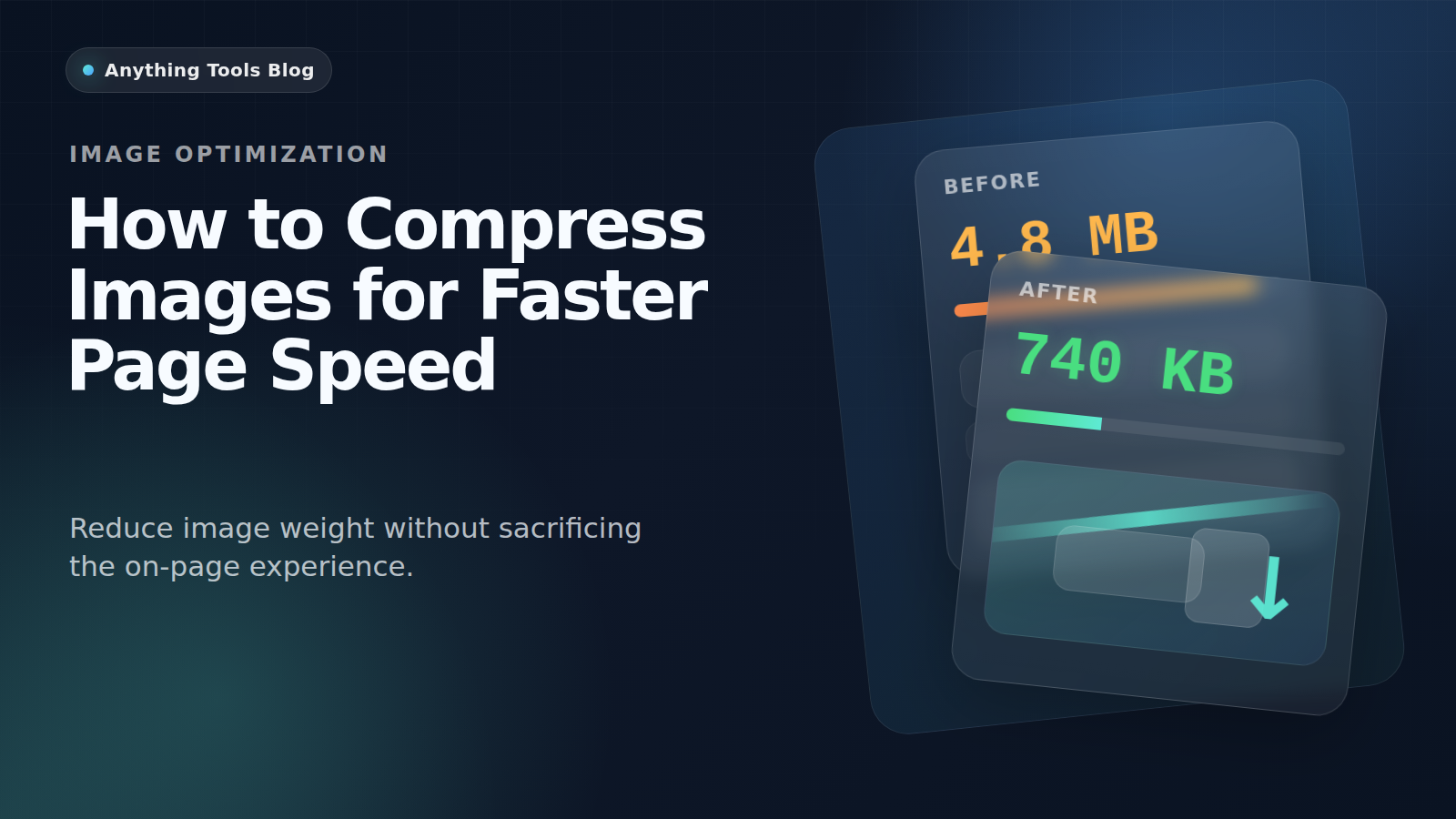
Heavy images are still one of the most common reasons pages feel slow. They hurt mobile users first, increase bandwidth costs, and make Core Web Vitals harder to improve.
The good news: faster image delivery usually does not require expensive tooling. A simple workflow—choose the right format, resize correctly, and compress with intent—solves most problems.
Why image compression matters
Large files increase the amount of data the browser must download before a page feels complete. That affects:
- perceived load speed
- Largest Contentful Paint (LCP)
- bounce rate on mobile connections
- crawl efficiency for image-heavy pages
If your site depends on visual content, image compression is one of the fastest SEO wins available.
Start with the right format
Compression works best after you choose the right file type:
- JPG for photographs and complex imagery
- PNG for graphics with transparency or sharp interface details
- WebP for modern web delivery when you want smaller files
If you are unsure, convert a test asset with the Image Converter and compare the result side by side.
Resize before you compress
One of the biggest mistakes is compressing a file that is far larger than the page actually needs. A 4000px image rarely belongs in a blog post layout.
Use the Image Resizer first. That alone can produce a bigger improvement than adjusting compression sliders.
As a practical rule:
- blog content images are often fine around 1200px wide
- thumbnails can be much smaller
- full-width hero images should still match real layout needs, not camera output
Then compress for delivery
After resizing, use the Image Compressor to reduce file size further. The goal is not “the smallest file possible.” The goal is the smallest file that still looks good in context.
Check the result on the actual page, especially for:
- faces and skin tones
- gradients and shadows
- text inside screenshots
- product details that users need to inspect
A practical workflow
- Export the original asset.
- Resize it to the actual display range.
- Convert to a better delivery format if appropriate.
- Compress until quality starts to fall off.
- Re-test the page after replacing the file.
This keeps your process consistent and avoids blind compression.
Common mistakes that hurt page speed
- uploading raw exports from a camera or Figma
- using PNG for every image by default
- compressing without resizing first
- replacing sharp UI images with aggressive JPG settings
- ignoring mobile previews
Final recommendation
For faster page speed, think in this order: dimensions first, format second, compression third. That sequence is more reliable than trying to crush a bad file with one final optimization pass.
If you want a quick starting point, resize the asset, compress it, and compare the before/after in your browser’s network panel. The performance gains are usually obvious.
Related Posts
How to Compress Images for Faster Page Speed
A practical workflow for smaller pages, cleaner Core Web Vitals, and fewer visual artifacts.
Bilder vor dem PDF-Export vorbereiten
Praktische Checkliste zum Skalieren, Komprimieren, Sortieren und Konvertieren von Bildern vor dem PDF-Export.