

Batch Convert Images: Complete Guide to Converting Multiple Files at Once
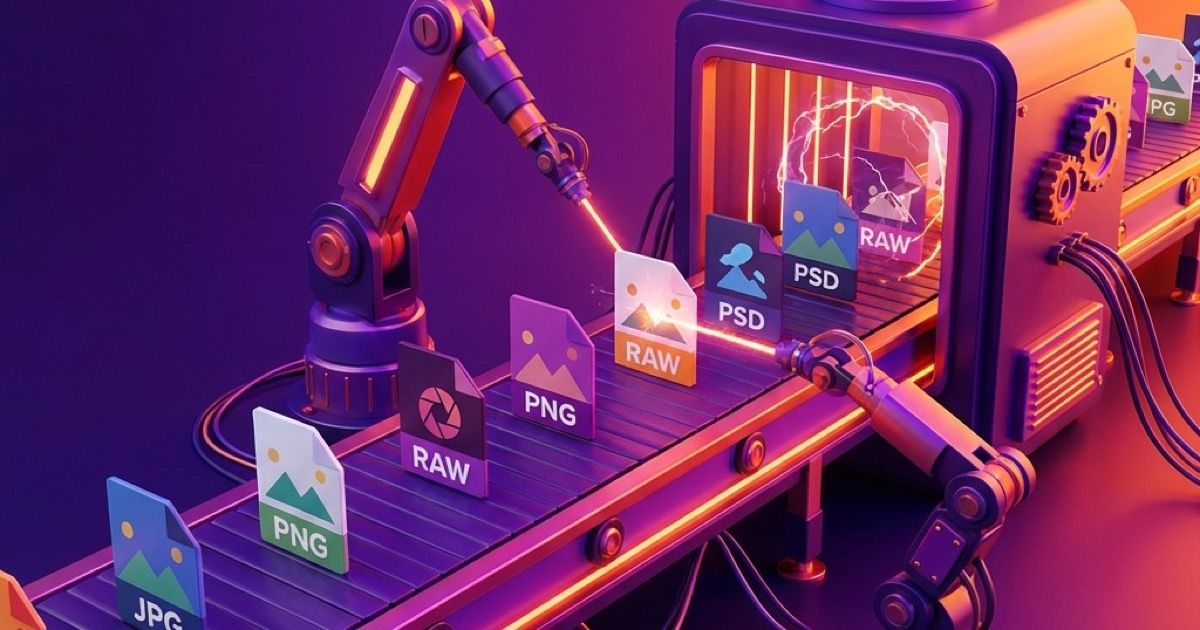
Batch Convert Images: Complete Guide to Converting Multiple Files at Once
Converting images one by one is tedious. Whether you have 10 photos or 1,000, this guide will show you how to batch convert them all at once - for free, without installing software.
Why Batch Convert Images?
Time Savings
Converting 100 images individually takes about 2 hours. Batch conversion? Under 5 minutes.
Consistency
Batch processing ensures all images use the same settings and quality levels.
Workflow Efficiency
Integrate batch conversion into your existing workflow for maximum productivity.
Method 1: Online Batch Converter (Recommended)
The fastest way to batch convert images is using a free online tool:
Step 1: Select All Your Files
- Go to Anything Tools Image Converter
- Click the upload area or drag and drop
- Select all files at once (Ctrl+A or Cmd+A)
- Click Open
Step 2: Wait for Conversion
- Conversion happens automatically
- Progress shown for each file
- All processing happens in your browser
Step 3: Download All
- Click Download All for a ZIP file
- Or download files individually
- Folder structure preserved
Advantages:
- ✅ No software installation
- ✅ Works on any device
- ✅ Complete privacy (browser-based)
- ✅ Unlimited files
- ✅ Free forever
Method 2: Command Line (For Developers)
Using ImageMagick
# Convert all PNG files to JPG
mogrify -format jpg *.png

# Convert with quality setting
mogrify -format jpg -quality 85 *.png

# Convert to WebP
for f in *.jpg; do cwebp "$f" -o "${f%.jpg}.webp"; done
Using FFmpeg
# Batch convert to WebP
for f in *.jpg; do ffmpeg -i "$f" "${f%.jpg}.webp"; done

# With quality settings
for f in *.png; do ffmpeg -i "$f" -quality 80 "${f%.png}.webp"; done
Method 3: macOS Preview
- Open Preview
- Select all images in Finder
- Right-click → Open With → Preview
- Select all thumbnails (Cmd+A)
- File → Export Selected Images
- Choose format and destination
Limitation: No WebP or AVIF support.
Method 4: Windows PowerShell
Using Paint.NET command line:
# Requires Paint.NET installed
Get-ChildItem *.png | ForEach-Object {
    & "paint.net" "/auto" $_.FullName "/save" ($_.FullName -replace '.png','.jpg')
}
Best Practices for Batch Conversion
1. Organize Before Converting
Create a folder structure:
/images
  /originals    (keep unmodified files)
  /converted    (output folder)
2. Use Consistent Naming
Our tool preserves original filenames:
photo-001.png→photo-001.jpgimage.HEIC→image.jpg
3. Check File Sizes
Monitor before/after:
- PNG → JPG: ~60-70% reduction
- PNG → WebP: ~70-80% reduction
- JPG → WebP: ~25-35% reduction
4. Backup Originals
Always keep original files until you verify conversions.
Common Batch Conversion Scenarios
iPhone Photo Library
Convert all HEIC to JPG:
- Export from Photos app (select all)
- Upload to our converter
- Download ZIP of JPGs
Website Optimization
Convert PNG/JPG to WebP:
- Export website images
- Batch convert to WebP
- Update HTML to use WebP with JPG fallback
Archive Digitization
Convert scanned BMPs to PNG or JPG:
- Scan as BMP (maximum quality)
- Batch convert to PNG (archival) or JPG (sharing)
- Organize by date/category
Social Media Prep
Convert various formats to JPG:
- Collect all content images
- Convert to JPG
- Verify under 5MB each
- Upload to social platforms
Handling Large Batches
100-500 Images
- Online converter handles easily
- Expect 2-5 minutes processing time
- Download as single ZIP
500-1000 Images
- Break into batches of 200
- Run multiple conversions
- Combine ZIP files
1000+ Images
- Consider command-line tools
- Use overnight processing
- Script automation for recurring needs
Automation Tips
Scheduled Conversions
For photographers or businesses processing images regularly:
- Set up a watched folder
- Use automation software (Hazel on Mac, Task Scheduler on Windows)
- Automatically convert new files
Integration with Cloud Storage
# Example: Auto-convert new images in Dropbox
watch -n 60 'find "/Dropbox/Photos" -name "*.heic" -exec convert {} {}.jpg \;'
Quality Settings Guide
| Source | Target | Recommended Quality |
|---|---|---|
| PNG (photo) | JPG | 85-90% |
| PNG (graphics) | JPG | 95% |
| JPG | WebP | 80-85% |
| HEIC | JPG | 85-90% |
| BMP | PNG | Lossless |
| Any | AVIF | 75-80% |
Common Issues & Solutions
"Out of Memory" Errors
Solution: Process in smaller batches. Browser-based converters use RAM for processing.
Slow Conversion
Causes:
- Very large images (20+ MP)
- Slow device
- Too many files at once
Solution: Reduce batch size, close other tabs, use newer device.
Inconsistent Results
Solution: Ensure all source images are same format. Mixed formats may need separate batches.
File Names with Special Characters
Tip: Our converter handles unicode filenames, but some tools don't. Rename files to basic alphanumeric if issues occur.
Frequently Asked Questions
How many images can I convert at once?
Our online tool has no hard limit. Practical limits depend on your device's RAM. Most devices handle 100-200 images easily.
Are my images uploaded to a server?
No! All processing happens in your browser using JavaScript. Your images never leave your device.
Can I convert different formats in one batch?
Yes! You can mix PNG, JPG, HEIC, WebP, and other formats. All will convert to your chosen target format.
What if conversion fails for some images?
Failed files are skipped, and successful conversions continue. You'll see which files had issues.
How long does batch conversion take?
Depends on file count and sizes. Rough estimates:
- 20 images: ~10 seconds
- 100 images: ~1 minute
- 500 images: ~5 minutes
Conclusion
Batch image conversion doesn't have to be complicated or expensive. With free online tools like ours, you can convert hundreds of images in minutes - directly in your browser with complete privacy.
Ready to convert your images?
Try our free batch converter:
Last updated: February 2026
Related Posts
So erstellen Sie QR-Codes für Speisekarten und Poster: Ein kompletter Leitfaden
Stärken Sie Ihr Geschäft, indem Sie individuelle QR-Codes für Ihre Speisekarten und Veranstaltungsplakate erstellen. Erfahren Sie, wie Sie im Jahr 2026 sichere und hochwertige QR-Codes generieren.
So verwenden Sie den Groß-/Kleinschreibung-Konverter für eine bessere Inhaltsformatierung
Erfahren Sie, wie Sie Text sofort zwischen Großbuchstaben, Kleinbuchstaben, Titelformat und mehr umwandeln können. Verbessern Sie Ihren Schreibworkflow mit unserem Online-Textkonverter.