

How to Convert HEIC to JPG: Complete Guide 2026

How to Convert HEIC to JPG: Complete Guide 2026
If you've ever tried to share photos from your iPhone with friends using Android or Windows, you've probably encountered the dreaded "can't open this file" message. That's because iPhones save photos in HEIC format by default, which many devices and platforms don't support.
In this comprehensive guide, we'll show you exactly how to convert HEIC to JPG quickly and easily, with multiple methods to choose from.
What is HEIC Format?
HEIC (High Efficiency Image Container) is Apple's default image format introduced with iOS 11. It uses advanced compression to create smaller file sizes while maintaining excellent image quality.
Benefits of HEIC:
- 50% smaller file sizes compared to JPG
- Better image quality at the same file size
- Supports transparency and multiple images in one file
- Native support on all Apple devices
The Problem:
- Not supported on Windows (without extensions)
- Incompatible with many Android devices
- Can't be uploaded to some websites
- Doesn't work with older software
Why Convert HEIC to JPG?
JPG (JPEG) is the most universally supported image format. Converting your HEIC files to JPG ensures:
✅ Universal Compatibility - Works on all devices and platforms
✅ Easy Sharing - Send via email, social media, messaging apps
✅ Web Upload - Compatible with all websites and online services
✅ Software Support - Opens in any image viewer or editor
Method 1: Use Anything Tools (Recommended)
The fastest and easiest way to convert HEIC to JPG is using our free online converter.
Step-by-Step Instructions:
- Visit the Converter
Go to HEIC to JPG Converter - Upload Your Images
- Drag and drop HEIC files onto the page
- Or click to browse and select files
- You can upload multiple images at once
- Automatic Conversion
- Conversion happens instantly in your browser
- Your images never leave your device
- Complete privacy and security
- Download JPG Files
- Click "Download" for each converted image
- Or download all as a ZIP file
Why Choose Anything Tools?
- ✅ 100% Free - No limits, no watermarks
- ✅ Privacy First - All processing happens in your browser
- ✅ No Installation - Works directly in your web browser
- ✅ Batch Conversion - Convert multiple files at once
- ✅ Fast - Instant conversion with no waiting
Method 2: Change iPhone Settings
If you want your iPhone to save photos as JPG by default, you can change the camera settings.
For New Photos:
- Open Settings on your iPhone
- Scroll down and tap Camera
- Tap Formats
- Select Most Compatible
Now all new photos will be saved as JPG instead of HEIC.
For Existing Photos:
Unfortunately, this doesn't convert existing HEIC photos. You'll need to use Method 1 or 3 for those.
Method 3: Use Built-in Tools
On Mac:
- Open the HEIC image in Preview
- Click File > Export
- Choose JPEG from the Format dropdown
- Click Save
On Windows 10/11:
- Install HEIF Image Extensions from Microsoft Store (free)
- Open HEIC file in Photos app
- Click three dots (...) > Save As
- Choose JPEG format
- Click Save
On iPhone/iPad:
- Open the HEIC photo in Photos app
- Tap the Share button
- Scroll down and tap Save to Files
- The image is automatically converted to JPG when shared
Method 4: Online Converters (Alternative)
If you prefer other online tools, here are some alternatives:
| Tool | Pros | Cons |
|---|---|---|
| Anything Tools | Free, private, fast, no limits | - |
| CloudConvert | Supports many formats | 25 conversions/day limit |
| Online-Convert | Easy to use | Ads, slower |
| Zamzar | Simple interface | Email required, slow |
We recommend Anything Tools because it's completely free, respects your privacy, and works entirely in your browser without uploading files to servers.
Comparison: HEIC vs JPG
| Feature | HEIC | JPG |
|---|---|---|
| File Size | Smaller (50% less) | Larger |
| Quality | Excellent | Very Good |
| Compatibility | Apple devices only | Universal |
| Transparency | Yes | No |
| Browser Support | Limited | All browsers |
| Best For | iPhone storage | Sharing & compatibility |
Frequently Asked Questions
Will I lose quality when converting HEIC to JPG?
There will be minimal quality loss during conversion. HEIC uses advanced compression, but JPG's compression is excellent for photographs. Most people won't notice any difference in quality.
Can I convert HEIC to JPG in bulk?
Yes! Our converter supports batch conversion. Simply select multiple HEIC files at once, and they'll all be converted to JPG simultaneously.
Is it safe to convert HEIC files online?
With Anything Tools, yes! All conversion happens directly in your browser using JavaScript. Your images never leave your device, ensuring complete privacy and security.
What happens to photo metadata (EXIF data)?
Our converter preserves important EXIF data including date taken, camera settings, and location information when available.
Can I convert iPhone Live Photos?
The conversion will extract the still image from Live Photos. The video component won't be included in the JPG.
Why are my iPhone photos in HEIC format?
Since iOS 11, Apple uses HEIC as the default format because it creates smaller files while maintaining quality. You can change this in Settings > Camera > Formats.
Tips for Best Results
1. Check Your Settings
If you frequently share photos with non-Apple users, consider changing your iPhone to save as JPG by default.
2. Convert Before Sharing
Convert HEIC to JPG before uploading to websites or sending to others to avoid compatibility issues.
3. Keep Originals
If storage isn't an issue, keep the original HEIC files as backups since they're smaller and higher quality.
4. Use Batch Conversion
If you have many photos to convert, use batch conversion to save time.
Conclusion
Converting HEIC to JPG doesn't have to be complicated. Whether you use our free online converter, change your iPhone settings, or use built-in tools, you now have multiple options to ensure your photos work everywhere.
Quick Recap:
- Use Anything Tools HEIC to JPG Converter for the fastest, most private conversion
- Change iPhone settings to save new photos as JPG
- Use Preview (Mac) or Photos (Windows) for occasional conversions
- JPG ensures universal compatibility across all devices and platforms
Ready to convert your HEIC images? Try our free HEIC to JPG converter now!
Related Tools:
Related Posts
PDF online in JPG oder PNG umwandeln: Welches Format ist richtig?
Erfahre, wann PDF-Seiten als JPG oder PNG exportiert werden sollten, wie Text lesbar bleibt und wie du die Bilder weiter komprimierst.
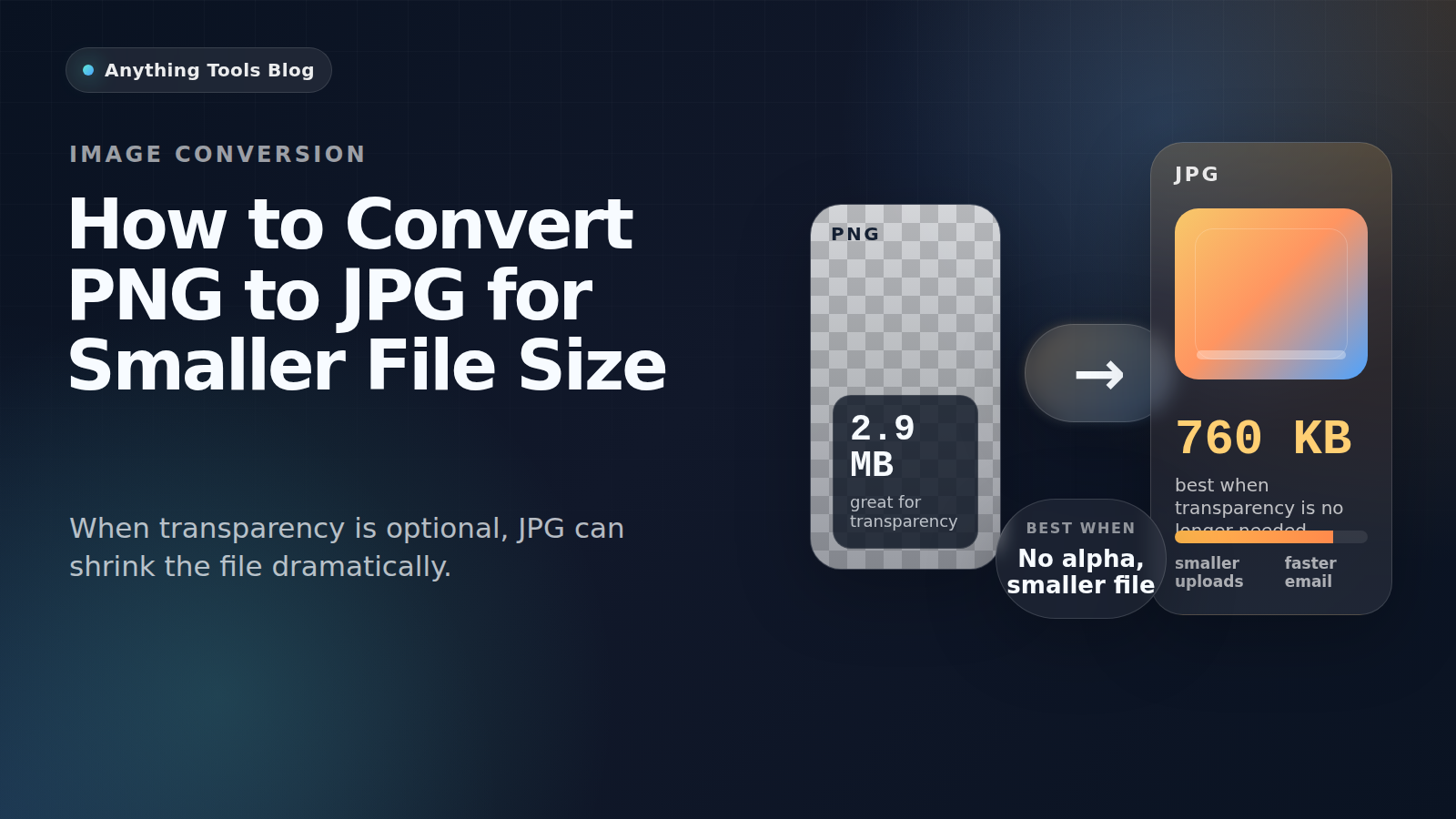
How to Convert PNG to JPG for Smaller File Size
Learn when PNG to JPG conversion makes sense, how much size you can save, and how to avoid ruining graphics, text, or transparency.