

PNG vs SVG: Which One Should You Use in 2026?
PNG vs SVG: Which One Should You Use in 2026?
Choosing the right image format is one of those decisions that seems trivial until you get it wrong. A logo that looks pixelated on a retina display, a web page that loads painfully slow because of oversized assets, or animated icons that refuse to scale—these are all symptoms of picking the wrong format.
In this guide, we will do a deep dive into two of the most important image formats on the modern web: PNG (Portable Network Graphics) and SVG (Scalable Vector Graphics). By the end, you will know exactly when to use each one—and why.
What Is PNG?
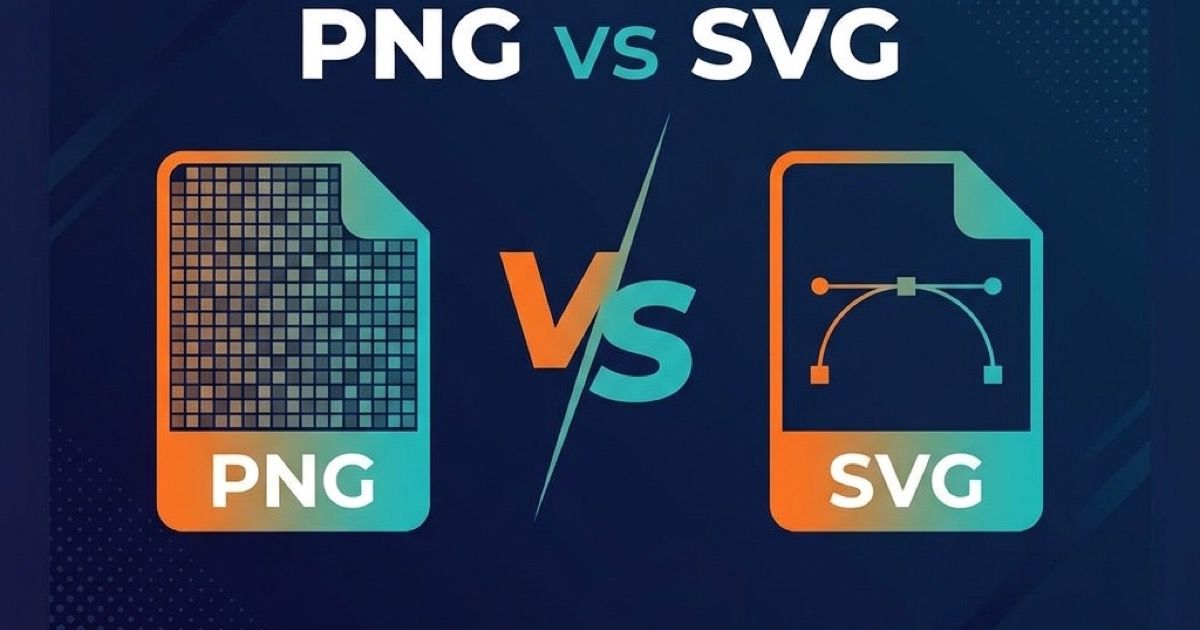
PNG is a raster image format, meaning it stores image data as a grid of individual colored pixels. Each pixel has specific color and transparency information. When you zoom into a PNG image, you eventually see those pixels as tiny squares, and the image becomes blurry or "pixelated."
Key Characteristics of PNG
- Lossless compression: PNG compresses files without discarding any image data, unlike JPG.
- Transparency support: PNG supports an alpha channel, enabling full or partial transparency for each pixel.
- High color depth: Supports up to 48-bit true color plus a 16-bit alpha channel.
- Wide compatibility: Virtually every browser, operating system, and image editor supports PNG.
- No animation (natively): Unlike GIF, standard PNG does not support animation (though APNG exists).
When PNG Excels
PNG is ideal for photographs and complex raster images that require transparency, such as:
- Product photos with transparent backgrounds (e.g., for e-commerce)
- Screenshots and UI mockups
- Digital artwork and illustrations with many colors and fine gradients
- Images that need pixel-perfect quality and will be displayed at a fixed size
What Is SVG?
SVG is a vector image format based on XML markup. Instead of storing individual pixels, SVG describes shapes, paths, colors, and text using mathematical equations. This means the image can be scaled to any size—from a tiny favicon to a billboard—without ever losing quality.
Key Characteristics of SVG
- Infinitely scalable: Resizes to any dimension with zero quality loss.
- Small file size for simple graphics: Logos, icons, and simple illustrations are often smaller as SVG than as PNG.
- Text-based format: SVG files are essentially XML code that can be read, edited, and even animated with CSS/JavaScript.
- Styleable with CSS: Colors, strokes, fills, and animations can be controlled via CSS.
- Accessibility: Text within SVG remains searchable and accessible to screen readers.
When SVG Excels
SVG is ideal for graphics that need to scale, be interactive, or remain crisp on any screen:
- Logos and brand marks
- Icons and icon systems
- Simple illustrations and infographics
- Charts, diagrams, and data visualizations
- Animated UI elements (loading spinners, micro-interactions)
- Maps and interactive graphics
PNG vs SVG: Head-to-Head Comparison
| Feature | PNG | SVG |
|---|---|---|
| Type | Raster (pixel grid) | Vector (math-based paths) |
| Scalability | Loses quality when scaled up | Perfectly sharp at any size |
| Transparency | Full alpha transparency | Full alpha transparency |
| File Size (icons/logos) | Larger | Significantly smaller |
| File Size (photos) | Efficient for photos | Extremely large / impractical |
| Animation | Not supported (APNG is limited) | Supported via CSS/JS |
| CSS Styling | Not possible | Fully styleable |
| Browser Support | Universal | Universal (modern browsers) |
| Editable as Code | No | Yes (XML/text) |
| Best For | Photos, screenshots, raster art | Logos, icons, illustrations |
Image Quality and Scaling
This is the single biggest differentiator. If you place a 200×200px PNG logo on a page and a user views it on a 4K retina display (which may render it at 400×400 effective pixels), the logo will look blurry. You would need to provide a 2x or 3x version to compensate.
With SVG, the same logo file renders perfectly sharp on every screen—from a smartwatch to a 65-inch TV. There is no need for multiple resolution files.
Rule of thumb: If an image needs to look sharp at multiple sizes, choose SVG. If it will only ever be displayed at one fixed size, PNG is fine.
File Size Considerations
For simple graphics (logos, icons, flat illustrations), SVG almost always wins on file size. A typical icon might be 1–5 KB as SVG versus 10–50 KB as a high-resolution PNG. Multiply that by dozens of icons across a website, and the performance difference becomes significant.
For complex images (photographs, detailed digital art), PNG is the clear winner. Encoding a photograph as SVG would produce an absurdly large file, since the format was never designed for pixel-level detail. Use PNG (or better yet, WebP or AVIF) for photos.
Performance and Web Optimization
In 2026, website performance is a critical ranking factor. Both formats have roles to play in an optimized site:
- Use SVG for all icons, logos, and UI graphics. They render instantly, scale flawlessly on responsive designs, and can even be inlined in HTML to eliminate HTTP requests entirely.
- Use PNG for raster images that require transparency. For images without transparency needs, consider using WebP or AVIF for even smaller file sizes. You can convert between formats using our Image Converter.
- Compress your PNGs. Tools like our Image Compressor can reduce PNG file size by 30–70% without visible quality loss.
Accessibility and SEO
SVG has a notable advantage for accessibility: text rendered within an SVG element remains selectable, searchable, and readable by screen readers. Search engines can also index text inside SVGs, which can marginally benefit SEO.
For PNG images, always provide descriptive alt attributes to ensure accessibility. Search engines cannot "read" text baked into a PNG image.
Can You Convert Between PNG and SVG?
It depends on the direction:
- PNG → SVG: This requires "tracing," which converts raster pixels into vector paths. Tools like Adobe Illustrator or Inkscape can do this, but the result is only good for simple images (logos, line art). Complex photos cannot be meaningfully converted to SVG.
- SVG → PNG: This is straightforward. Any browser or image editor can "rasterize" an SVG to PNG at whatever resolution you need. Our Image Converter can help you export images in various formats as well.
Real-World Decision Framework
Still unsure which format to pick? Use this simple framework:
- Is it a photograph or photographic image? → Use PNG (or WebP/AVIF)
- Is it a logo, icon, or simple illustration? → Use SVG
- Does it need to scale across devices (responsive)? → Use SVG
- Does it need to be animated interactively? → Use SVG
- Is it a screenshot or complex UI mockup? → Use PNG
- Does it need pixel-perfect reproduction at a fixed size? → Use PNG
Choosing the Right Color for Your Image
Regardless of which format you choose, selecting harmonious and accessible colors is crucial for professional-looking graphics. Our Color Picker lets you find the perfect shades for your web designs and ensures WCAG contrast compliance for accessible UI.
Conclusion
PNG and SVG are not competitors—they are complementary formats, each engineered for a different class of images. In 2026, the best practice is clear:
- Use SVG for anything that is fundamentally made of shapes: logos, icons, illustrations, charts, and interactive graphics.
- Use PNG for anything that is fundamentally a pixel grid: photos, screenshots, and detailed raster artwork.
By choosing the right format for each asset on your site, you will achieve faster page loads, sharper visuals on every device, and a more professional user experience overall. When you need to convert or optimize your images, use our Image Converter and Image Compressor to get the job done in seconds—right in your browser.
Related Posts
PNG vs SVG: Welches Format Sollten Sie in 2026 Verwenden?
Ein umfassender Vergleich der Bildformate PNG und SVG. Lernen Sie die wichtigsten Unterschiede, Stärken und idealen Einsatzbereiche beider Formate kennen.
WebP vs PNG for Logos and Transparent Images
Compare WebP and PNG for logos, icons, screenshots, and transparent assets. Learn when smaller files beat maximum compatibility.