

WebP vs PNG for Logos and Transparent Images
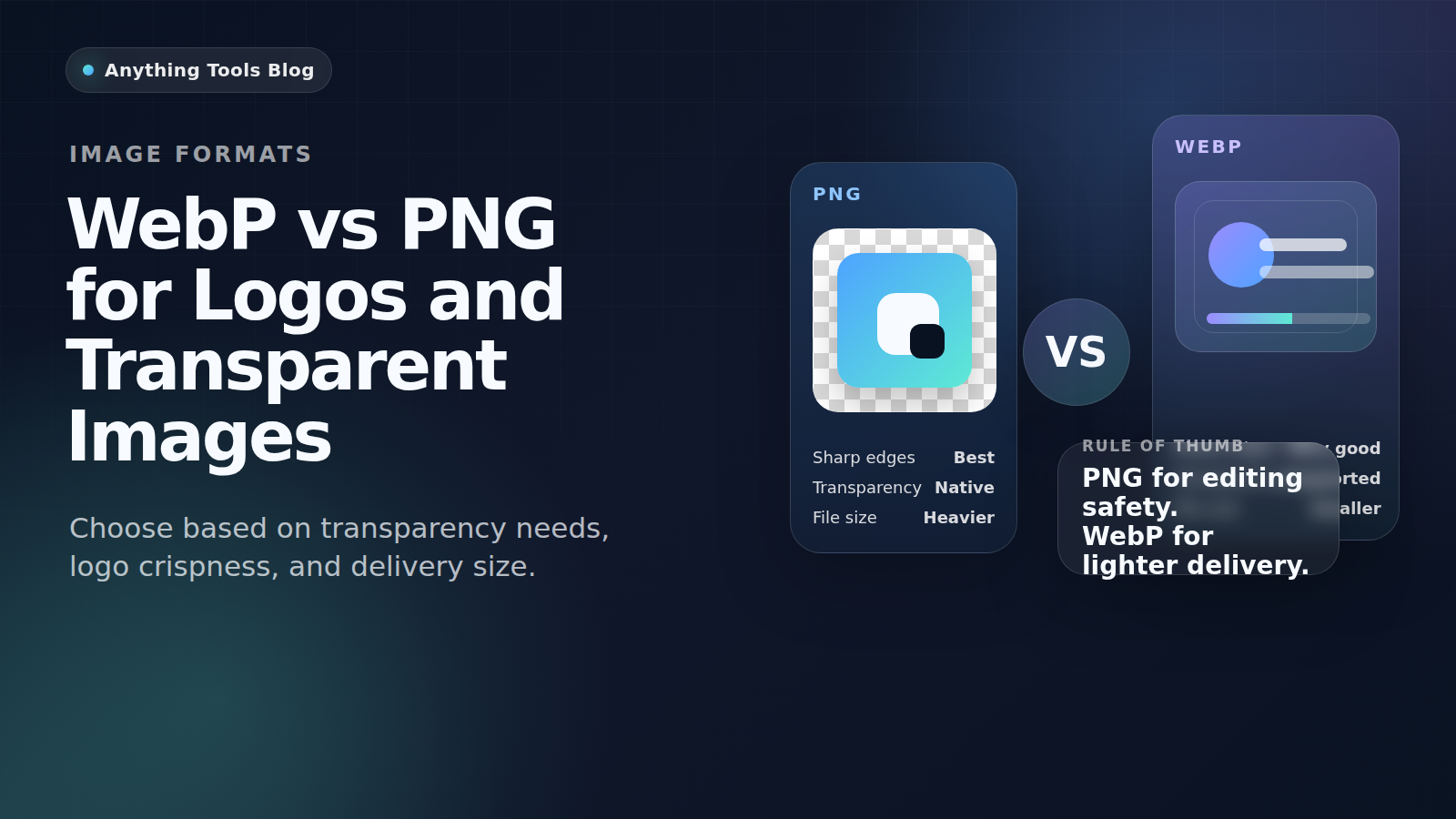
WebP and PNG can both handle transparent images, but they solve different problems. PNG remains the safe choice for editing workflows, brand assets, and maximum compatibility. WebP is usually better when the goal is faster delivery on modern websites.
If you manage logos, icons, screenshots, or UI assets, the right choice depends on how the image will be used after export—not just on which format is newer.
The short answer
- Choose PNG for master files, design handoff, repeated editing, and older software support.
- Choose WebP for published web assets when you want smaller files and faster pages.
- If transparency is required, test the exported asset on the final page before replacing your PNG library.
Where PNG still wins
PNG is still the most reliable option for design teams. It preserves sharp edges well, supports full transparency, and opens correctly in almost every editor, CMS, email client, and legacy workflow.
PNG is usually the better fit for:
- source logos and brand kits
- screenshots with text or UI details
- design approval files passed between tools
- assets that may be edited many times later
That is why many teams keep a PNG master, then generate smaller delivery formats afterward.
Where WebP wins
WebP is built for modern web delivery. If your logo or transparent illustration is already final, converting it with the Image Converter can shrink the file noticeably without changing how it looks on a website.
WebP is usually the better fit for:
- published logos on marketing pages
- website icons and decorative transparent graphics
- blog illustrations and content images
- assets that need to help page speed
Smaller image files mean less bandwidth, faster rendering, and better odds of improving Core Web Vitals.
Practical decision framework
Ask these questions before choosing a format:
- Will this file be edited later? Keep PNG.
- Does the file need to work in old tools or email workflows? Keep PNG.
- Is the image only being served on the web? WebP is probably better.
- Is file size currently a bottleneck? WebP deserves a test.
Best workflow for most teams
A simple workflow works best:
- Create and store the master asset as PNG or SVG.
- Export a web-ready copy in WebP for the live website.
- If dimensions are larger than needed, resize first with the Image Resizer.
- If the asset is still heavy, compare additional output settings with the Image Compressor.
Common mistakes
- replacing every original brand file with WebP
- sending WebP files to non-technical stakeholders who expect PNG
- using JPG for transparent logos
- ignoring the impact of oversize dimensions
Final recommendation
For logos and transparent images, PNG is the safer working format and WebP is often the better delivery format. Keep PNG for editing and compatibility. Use WebP when the asset is final and the website needs lighter files.
If you want to compare both in minutes, export one transparent asset in both formats and measure the real result on the page.
Related Posts
PNG vs SVG: Welches Format Sollten Sie in 2026 Verwenden?
Ein umfassender Vergleich der Bildformate PNG und SVG. Lernen Sie die wichtigsten Unterschiede, Stärken und idealen Einsatzbereiche beider Formate kennen.
PNG vs SVG: Which One Should You Use in 2026?
A comprehensive comparison of PNG and SVG image formats. Learn the key differences, strengths, and ideal use cases for each format to make the right choice for your project.