

How to Open HEIC Files on Windows and Android
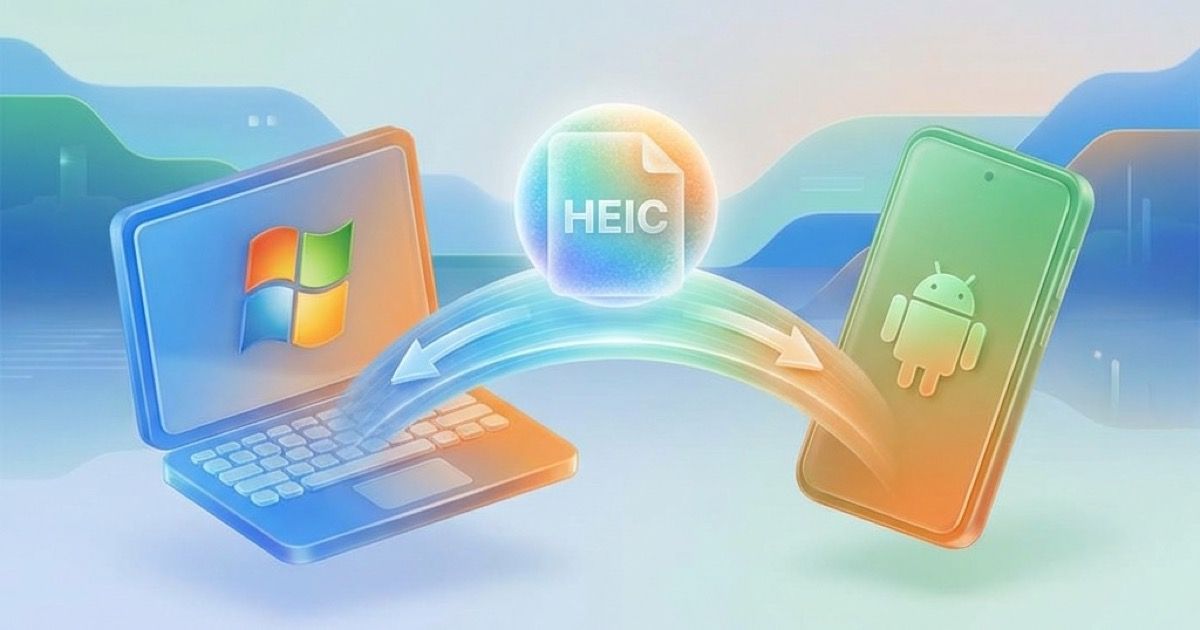
How to Open HEIC Files on Windows and Android
Received HEIC files from an iPhone user and can't open them? You're not alone. Here's every way to view HEIC files on Windows and Android.
What is HEIC?
HEIC (High Efficiency Image Container) is Apple's default photo format since iOS 11 (2017). It offers:
- 50% smaller files than JPG
- Better quality at same size
- Live Photos support
- But: Limited compatibility outside Apple
When iPhone users share photos, Windows and Android often can't display them.
Opening HEIC on Windows
Method 1: Install HEIF Extensions (Recommended)
Works on: Windows 10 and 11
Steps:
- Open Microsoft Store
- Search "HEIF Image Extensions"
- Install the free extension
- Also install "HEVC Video Extensions" ($0.99) for full support
- Restart your computer
- Double-click HEIC files - they now open!
Pros: Native integration, works everywhere Cons: HEVC extension costs $0.99
Method 2: Use a Free Viewer
CopyTrans HEIC for Windows (Free)
- Download from copytrans.net
- Install the application
- Right-click HEIC → Open with → Windows Photo Viewer
- Also adds "Convert to JPEG" option
Pros: Completely free, adds conversion Cons: Third-party software
IrfanView (Free)
- Download IrfanView
- Install HEIC plugin
- Open HEIC files directly
Pros: Powerful image viewer, many formats Cons: Plugin required
Method 3: Online Conversion (No Install)
For occasional use, convert online:
- Go to Anything.tools HEIC Converter
- Drag and drop HEIC files
- Download as JPG
- Open anywhere
Pros: No installation, instant Cons: Need to convert each time
Method 4: Google Photos (Cloud)
- Upload HEIC to Google Photos
- View in any browser
- Download as JPG if needed
Pros: View anywhere, auto backup Cons: Requires upload, storage limits
Opening HEIC on Android
Method 1: Google Photos (Best)
Most Android devices with Google Photos can view HEIC:
- Open HEIC in Gallery → fails
- Open same file in Google Photos → works
- If not, update Google Photos
Method 2: Install HEIC Viewer App
Luma - HEIC to JPG Converter (Free)
- Install from Play Store
- Opens HEIC files directly
- Also converts to JPG
Simple Gallery Pro
- Install from Play Store
- Supports HEIC natively
- Great general gallery app
Method 3: Samsung Devices (Built-in)
Samsung Galaxy phones (recent models) support HEIC:
- Update Samsung Gallery app
- HEIC files should open automatically
- If not, use Google Photos method
Method 4: Convert Online
Same as Windows method:
- Open Anything.tools in Chrome
- Upload HEIC files
- Download JPG versions
- View normally
Why Can't I Open HEIC Files?
Windows
- Missing codec: Windows doesn't include HEIC support by default
- Older Windows: Windows 7/8 need third-party viewers
- Not updated: Even Windows 10/11 need extensions
Android
- Old Android version: HEIC support added in Android 9+
- Missing codec: Many devices lack the decoder
- Gallery app: Default gallery may not support it
Preventing HEIC Issues
For iPhone Users (Sending Photos)
Change format when sharing:
Settings → Camera → Formats → Most Compatible
Or: When sharing, iOS automatically converts to JPG for non-Apple recipients (usually).
For Recipients
Ask iPhone users to:
- Share via iCloud link (auto-converts)
- Use "Most Compatible" format
- Email (often auto-converts to JPG)
Batch Converting HEIC Files
Have many HEIC files? Convert them all at once:
Online (Free, Private)
- Go to Anything.tools Image Converter
- Select all HEIC files (Ctrl+A)
- Upload all at once
- Download as ZIP
Conversion happens in your browser - files never uploaded to servers.
Windows Software
iMazing HEIC Converter (Free)
- Batch conversion
- Drag and drop interface
- Preserves EXIF data
CopyTrans HEIC
- Right-click → Convert to JPEG
- Works on individual or multiple files
Command Line (Advanced)
Using ImageMagick:
for file in *.heic; do
  magick "$file" "${file%.heic}.jpg"
done
Using sips (macOS):
for file in *.HEIC; do
  sips -s format jpeg "$file" --out "${file%.HEIC}.jpg"
done
Troubleshooting
"File format not supported"
Solution: Install HEIF extensions (Windows) or use Google Photos (Android).
"Codec not found"
Solution: Install HEVC Video Extensions from Microsoft Store ($0.99).
HEIC shows as white/blank
Solution: File may be corrupted. Try different viewer or re-download from source.
Can open some HEIC but not others
Possible causes:
- Some files use different codec variants
- Files may be HDR (requires additional support)
- Install both HEIF and HEVC extensions
Conversion loses quality
Solution: Use 90-95% quality setting. Some loss is normal (HEIC → JPG is lossy to lossy).
Comparing Solutions
| Method | Cost | Batch | Privacy | Ease |
|---|---|---|---|---|
| Microsoft Extensions | $0.99 | N/A (viewing) | ✅ | ⭐⭐⭐⭐⭐ |
| CopyTrans HEIC | Free | ✅ | ✅ | ⭐⭐⭐⭐ |
| Online Convert | Free | ✅ | ✅ | ⭐⭐⭐⭐⭐ |
| Google Photos | Free | ✅ | ❌ (cloud) | ⭐⭐⭐⭐ |
| Android Apps | Free | ✅ | ✅ | ⭐⭐⭐⭐ |
Keeping Photos in HEIC
Should you convert all HEIC to JPG?
Keep as HEIC if:
- You have Apple devices
- Storage matters (50% smaller)
- You want best quality
- Original source needs preserving
Convert to JPG if:
- Sharing with non-Apple users
- Using in documents/presentations
- Printing at photo services
- Embedding in websites
Frequently Asked Questions
Is HEIC better than JPG?
For storage and quality, yes. HEIC is smaller with better quality. For compatibility, JPG wins.
Will converting HEIC to JPG lose quality?
Minimal loss at 85-90% quality. Both are designed for photos, so results look identical.
Can I convert HEIC to JPG on iPhone?
Yes! Open photo, tap Share, and many share methods auto-convert. Or use our online tool in Safari.
Why does Apple use HEIC?
Storage savings. With 48MP cameras, HEIC keeps file sizes manageable while maintaining quality.
Do Windows apps support HEIC now?
Some do. Photoshop, Lightroom, and recent versions of many apps added HEIC support.
Is HEIC the same as HEIF?
Almost. HEIF is the format standard, HEIC is Apple's implementation using HEVC codec.
Conclusion
Opening HEIC files is easy once you know how:
Windows: Install HEIF + HEVC extensions from Microsoft Store
Android: Use Google Photos or install a HEIC viewer app
Quick solution: Convert to JPG online at Anything.tools
The online converter is fastest for occasional use and keeps your files private (browser-based processing).
Related Tools
- HEIC to JPG Converter - Most common conversion
- HEIC to PNG Converter - Lossless conversion
- All Image Converters - Every format
Last updated: February 2026
Related Posts

So erstellen Sie QR-Codes für Speisekarten und Poster: Ein kompletter Leitfaden
Stärken Sie Ihr Geschäft, indem Sie individuelle QR-Codes für Ihre Speisekarten und Veranstaltungsplakate erstellen. Erfahren Sie, wie Sie im Jahr 2026 sichere und hochwertige QR-Codes generieren.
So verwenden Sie den Groß-/Kleinschreibung-Konverter für eine bessere Inhaltsformatierung
Erfahren Sie, wie Sie Text sofort zwischen Großbuchstaben, Kleinbuchstaben, Titelformat und mehr umwandeln können. Verbessern Sie Ihren Schreibworkflow mit unserem Online-Textkonverter.