

How to Crop Images for Thumbnails Without Losing the Subject
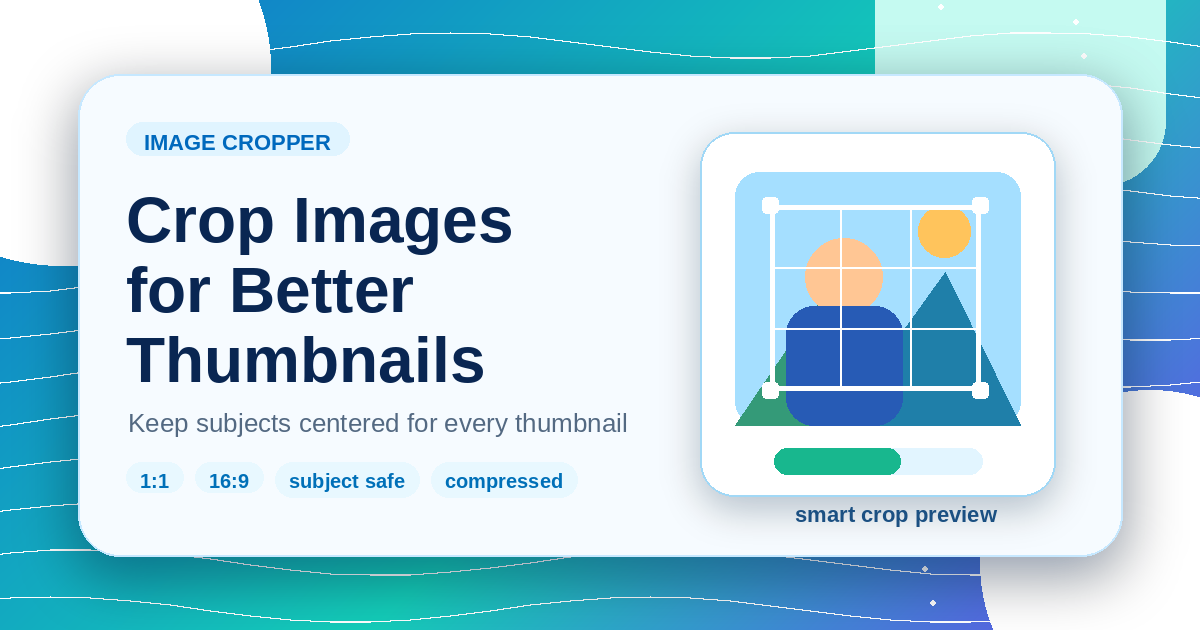
How to Crop Images for Thumbnails Without Losing the Subject
Start with the final frame
A thumbnail crop should begin with the destination: square card, wide preview, or vertical story. Decide the ratio before dragging the crop box.
Protect the subject
Use the Image Cropper to keep faces, product details, or interface labels away from the edge. Leave breathing room so responsive layouts do not feel cramped.
Resize after cropping
Crop first, then use the Image Resizer if the final dimensions need to be smaller. Resizing before cropping can make the subject harder to place.
Compress a copy
After the crop looks right, use the Image Compressor on a copy. Compare at the real display size, not only inside the editor.
Final check
Open the thumbnail on a light and dark background. If the subject is still readable at small size, the crop is ready.
Related Posts
Bilder für Thumbnails zuschneiden, ohne das Motiv zu verlieren
Browser-Workflow für Karten, Vorschauen und Social-Thumbnails mit sichtbarem Hauptmotiv.
Gemini-Wasserzeichen entfernen oder zuschneiden: Was ist besser?
Vergleicht Wasserzeichen-Entfernung und Zuschnitt bei Gemini-Bildern und zeigt, wann Komposition, Seitenverhältnis und Qualität besser erhalten bleiben.