How to Convert Markdown & AI Responses to Shareable Images (2026 Guide)
Whether you are summarizing a technical architecture with ChatGPT, comparing benchmarks in Claude, or taking structured notes in Obsidian and Notion, Markdown is the universal language of modern productivity.
However, sharing raw Markdown on social platforms or messaging apps is frustrating:
- Social feeds strip Markdown formatting: X (Twitter), LinkedIn, WeChat, and mobile chat apps do not render GitHub-Flavored Markdown (GFM) tables or syntax-highlighted code blocks.
- Manual scrolling screenshots look messy: Stitching multiple screenshots cuts tables in half, blurs text on Retina screens, and includes distracting browser UI elements.
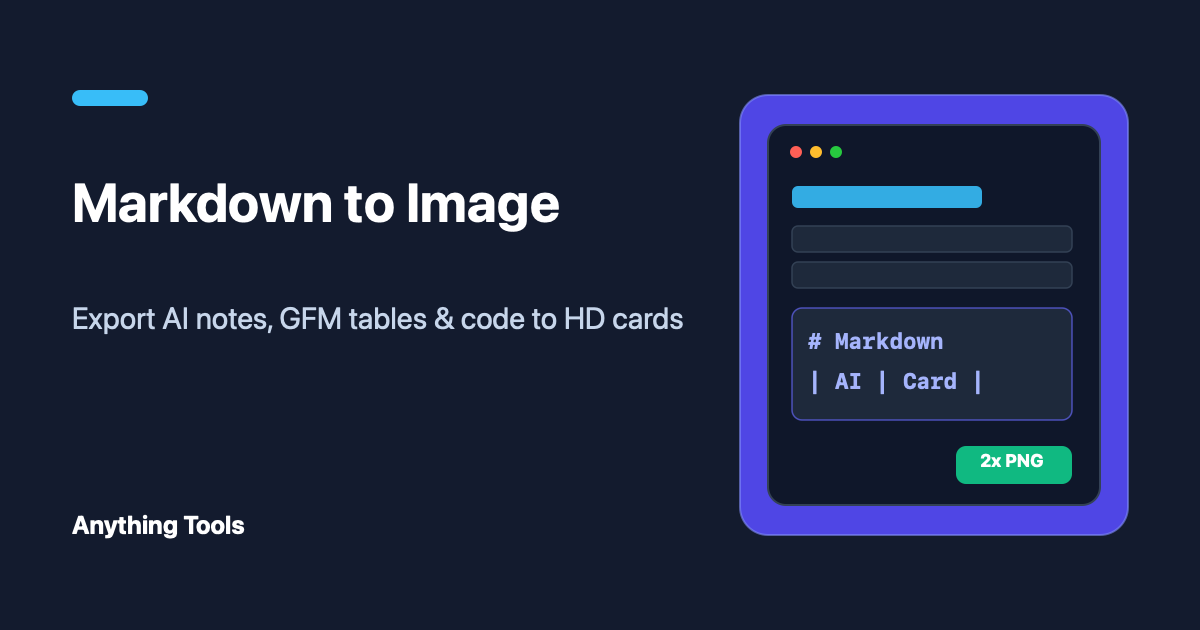
In this guide, we will show you how to instantly convert any Markdown document or AI chat response into a crisp, customizable PNG, JPG, or SVG visual card using our free Markdown to Image Converter.
Why Convert Markdown to an Image Card?
| Sharing Method | Table & Code Rendering | Mobile Readability | Visual Branding | Privacy |
|---|---|---|---|---|
| Raw Markdown Text | ❌ Broken pipes & backticks | ⚠️ Hard to scan | ❌ Plain text | ✅ Local |
| OS Scrolling Screenshot | ⚠️ Often misaligned | ❌ Tiny desktop font | ❌ Cluttered UI | ✅ Local |
| Markdown to Image Card | ✅ Full GFM + Shiki colors | ✅ 440px–820px presets | ✅ Custom themes & footer | ✅ 100% Browser Local |
Step-by-Step: Turning Markdown or AI Responses into High-DPI Images
Step 1: Copy Your Markdown or Upload a .md File
In ChatGPT, Claude, or DeepSeek, click the Copy icon beneath any response (which copies the underlying Markdown, including tables and fenced code blocks). Paste it directly into the Markdown to Image Converter or upload a .md file from your computer.
Step 2: Pick a Typography Theme & Backdrop
Choose from five curated card themes designed for maximum readability:
- Modern Light: Clean white surface with subtle slate borders for documentation and professional reports.
- macOS Dark: High-contrast dark slate card (
#0f172a) with glowing sky-blue accents, ideal for developer snippets. - Warm Paper: Soft cream background inspired by classic reading notes—perfect for long-form mobile reading without eye strain.
- Emerald AI & Cyber Ocean: Distinct accent themes for AI summaries and technical benchmarks.
Want a clean, borderless long image without an outer gradient frame? Simply drag the Outer Backdrop Padding slider to 0px or select the Transparent backdrop.
Step 3: Select the Right Canvas Width
Different platforms favor different aspect ratios:
440px(Mobile Long Card): Optimized for smartphone screens, vertical social posts, and messaging apps.640px(Social Post): Balanced width for X (Twitter), LinkedIn, Discord, and Slack threads.820px(Wide Document): Prevents line wrapping when your Markdown contains multi-column comparison tables or wide code blocks.
Step 4: One-Click Copy or 2x/3x Retina Download
- Click Copy Image to write the rendered PNG directly to your system clipboard, then press
Ctrl+V/Cmd+Vinside Slack, Notion, X, or your chat app. - Or download a 2x (Retina HD) or 3x (Ultra Print) PNG, JPG, or vector SVG file.
More Tools for Markdown & Developer Workflows
- Need clean inline HTML for newsletters or CMS publishing? Try our Markdown to HTML Converter.
- Want to highlight a single source code snippet? Use the dedicated Code to Image Generator.
- Exporting an entire multi-turn AI conversation log? Check out the ChatGPT Session Converter.