

How to Remove a Gemini Watermark Online Safely
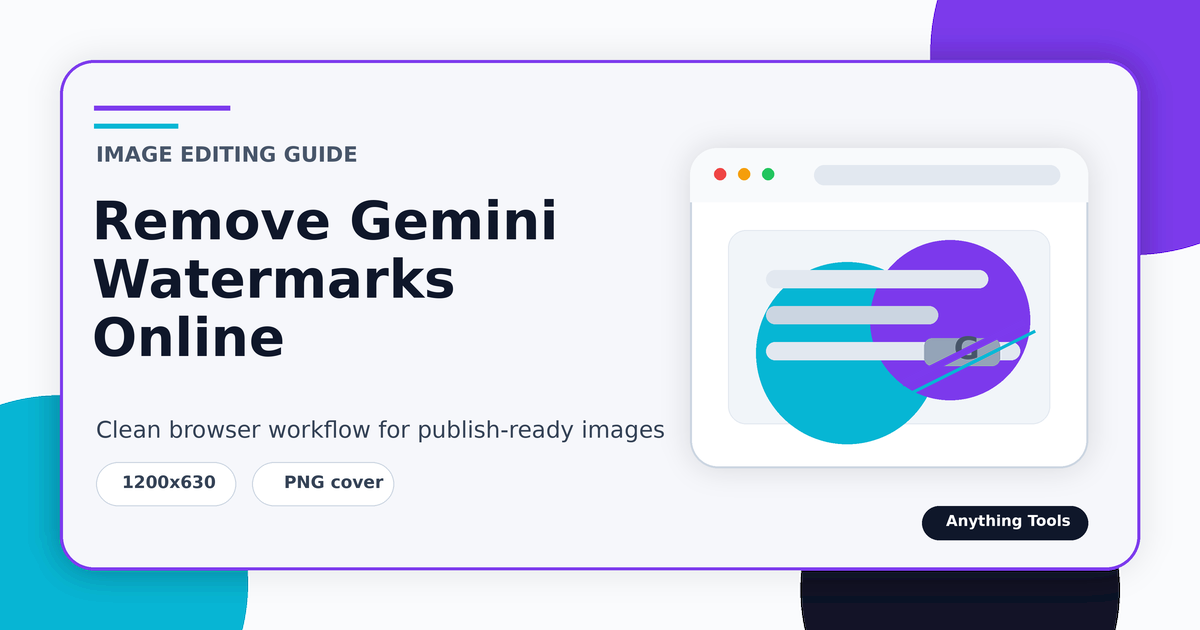
How to Remove a Gemini Watermark Online Safely
What the tool can and cannot do
The Gemini watermark remover is designed for visible, semi-transparent overlays that follow known Gemini-style placement. It is not an AI inpainting tool and it does not remove invisible provenance metadata. Start with the original PNG whenever possible, because screenshots or social-media downloads may turn the image into JPEG and make recovery less predictable.
Step-by-step workflow
Open the Gemini Watermark Remover, upload the image, and review the preview before downloading. If the result still shows a faint mark, try a higher-quality source image instead of repeatedly processing the same export. After cleanup, use the Image Compressor only if you need a smaller file, and use the Image Resizer when the image must fit a publishing size.
Privacy and quality checks
Browser-side processing keeps the file local, which is useful for drafts and client previews. Always zoom into the watermark area, compare edges and flat backgrounds, and keep the original file in case you need to re-export. For commercial publishing, make sure you have the right to edit and reuse the image.
Common mistakes
Do not expect clean results from heavily recompressed JPEG files. Do not crop away important content just to hide a watermark. Do not describe the result as perfect if there are visible artifacts; use a conservative export and document any manual retouching outside the tool.
Conclusion
Use the browser tool when you need a quick, private cleanup of a visible Gemini-style overlay. Pair it with resizing or compression only after you have checked the restored area carefully.
Related Posts
Bilder für Thumbnails zuschneiden, ohne das Motiv zu verlieren
Browser-Workflow für Karten, Vorschauen und Social-Thumbnails mit sichtbarem Hauptmotiv.
Gemini-Wasserzeichen entfernen oder zuschneiden: Was ist besser?
Vergleicht Wasserzeichen-Entfernung und Zuschnitt bei Gemini-Bildern und zeigt, wann Komposition, Seitenverhältnis und Qualität besser erhalten bleiben.