

How to View, Validate, and Convert JSONL (JSON Lines) Files Online (2026 Guide)
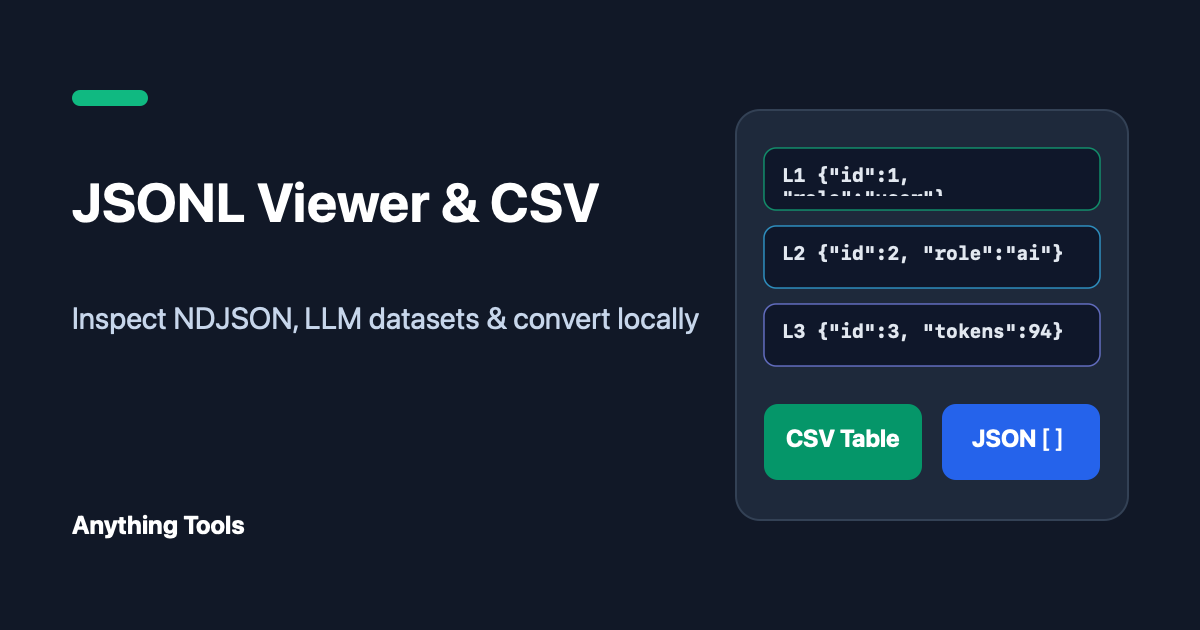
If you work with OpenAI Batch API, Anthropic Claude, DeepSeek, or HuggingFace fine-tuning datasets, you have almost certainly encountered .jsonl (JSON Lines) or .ndjson (Newline-Delimited JSON) files.
However, the moment you paste a multi-line .jsonl file into a traditional JSON formatter, you get a SyntaxError: Unexpected token on line 2.
In this guide, we will explain how JSONL works and show you how to inspect, validate, filter, and convert .jsonl files into spreadsheets (.csv) or standard .json arrays locally in your browser using our free JSONL Viewer & Converter.
JSONL vs. Standard JSON vs. CSV
| Feature | JSONL (.jsonl / .ndjson) | Standard JSON (.json) | CSV (.csv) |
|---|---|---|---|
| Structure | One independent JSON object per line | Single root array [...] or object {...} | Flat rows and columns |
| Streaming & Append | ✅ Append-friendly (O(1) per line) | ❌ Must parse entire file to append | ✅ Append-friendly |
Nested Data (messages) | ✅ Native nested arrays & objects | ✅ Native nested structures | ❌ Requires string escaping |
| Best Use Case | LLM fine-tuning, Batch APIs, server logs | REST API payloads, config files | Spreadsheets, BI dashboards |
Step-by-Step: How to Inspect & Convert JSONL Online
Step 1: Paste JSONL or Drop a .jsonl File
Open the JSONL Viewer & Converter and paste your multi-line JSONL payload—or drag and drop a local .jsonl or .ndjson file.
💡 Bonus: Have a standard JSON array (
[{...}, {...}]) that you need to prepare for OpenAI fine-tuning? Paste the array directly into the input box and click To Strict JSONL to flatten each object onto its own line!
Step 2: Browse in Table View or LLM Conversation Cards
- Table View: Automatically detects all top-level keys across your records and displays them in a scrollable spreadsheet table. Click any row to open the full pretty-printed JSON inspector.
- Line Cards & Chat View: If your dataset contains an LLM
messagesarray (system,user,assistant), the viewer renders each conversation turn as color-coded chat badges alongside the raw JSON. - Line-by-Line Error Pinpointing: If line 48 has a missing quote or trailing comma, the tool flags Line 48 specifically while still rendering the other 999 valid records.
Step 3: Export to CSV, JSON Array, or Normalized JSONL
Click Export File at the top right to download your dataset as:
- Download CSV: Opens cleanly in Excel, Google Sheets, or Pandas (nested objects are safely serialized and RFC-4180 escaped).
- Download JSON: Converts all lines into a properly indented
[...]JSON array. - Download JSONL: Strips empty lines and formats every record as strict single-line NDJSON.
Related Developer Workflows
- Inspecting a single nested JSON object? Use our JSON Formatter & Validator.
- Converting spreadsheet exports back into JSON? Try the CSV to JSON Converter.
- Auditing exported AI chat histories? Check out the ChatGPT Session Converter.
Related Posts
Convert Images to Base64: When It Helps and When It Hurts
Learn when Base64 image strings are useful for prototypes, emails, and small assets, plus when normal image files are better.
How to Format SQL Online: Make Queries Easier to Read
Format SQL online to turn dense queries into readable, review-ready code. Learn a safe workflow for indentation, keywords, and sharing SQL without changing its meaning.